Follow the photos with your remote in your hand. Press one button at a time and wait a few seconds between steps.
The steps at a glance
Turn on the TV → Select HDMI → Turn on the TV Box → Open Dragonet TV → Choose a channel.
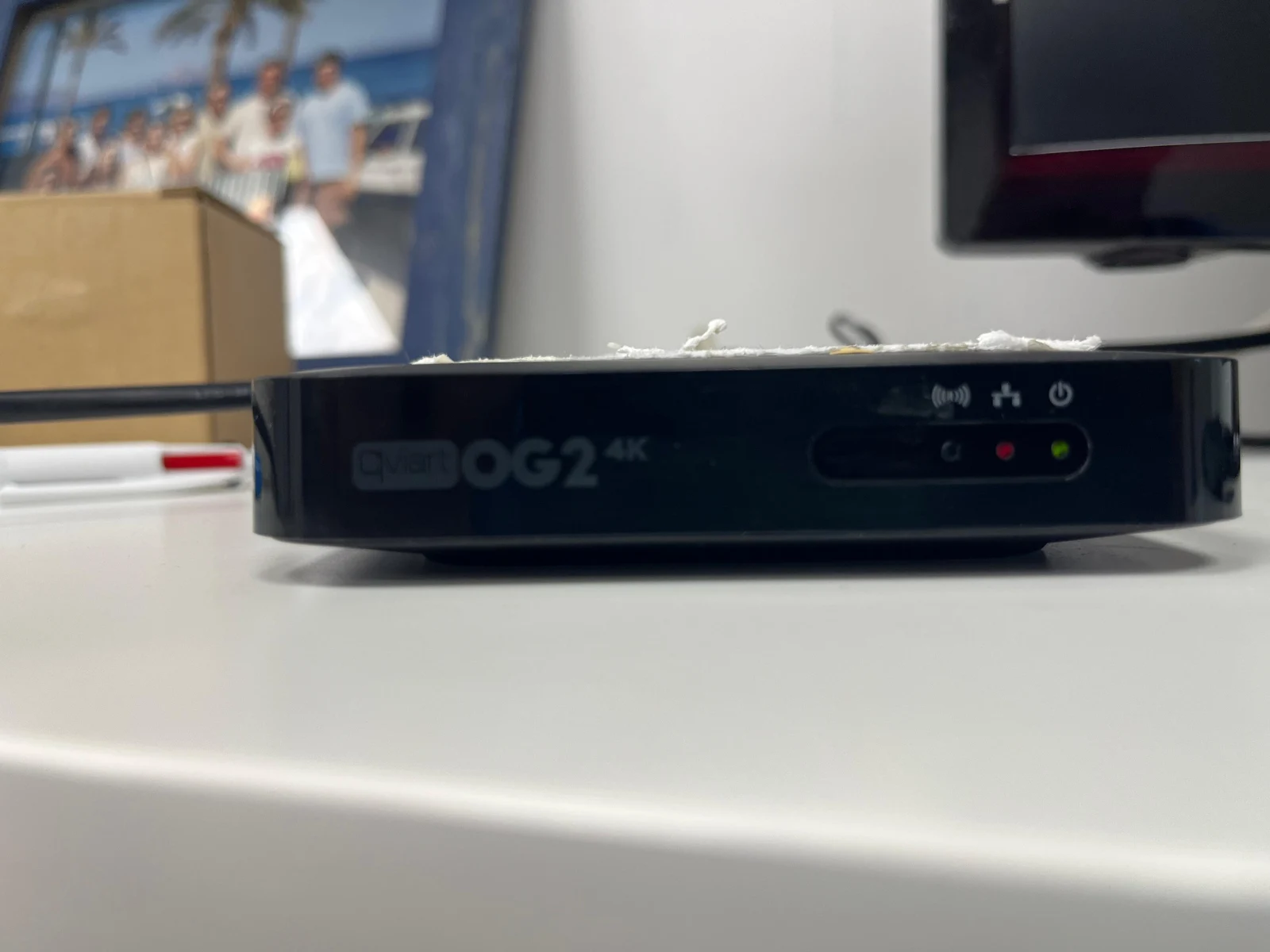
The photos show a Qviart OG2 4K and a Samsung TV. Your TV’s menus may look different. The original photos and video have been kept, so some words on screen are in Spanish.
First: which remote should I use?
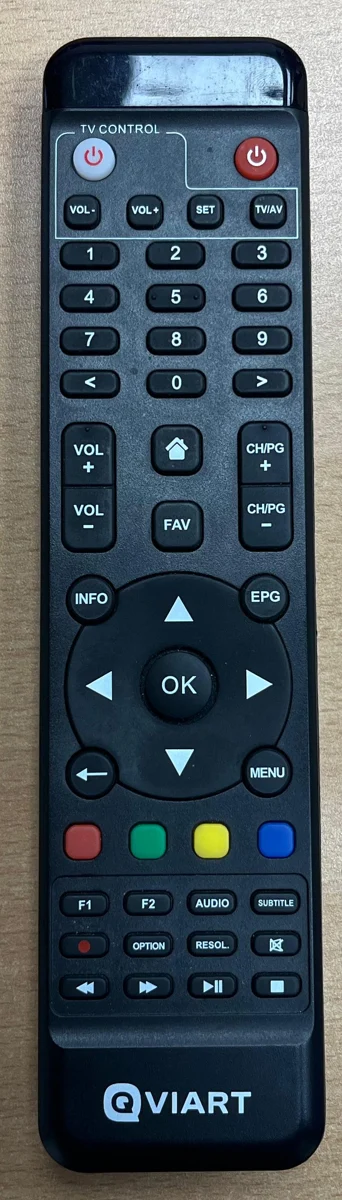
To turn on the TV and select HDMI, use your television’s remote. To open Dragonet TV and change channels, use the Qviart remote shown in the photo.
123456
The numbers show the buttons you will need.
1 · Red button, top rightTurns the TV Box on or puts it in standby.
2 · CH/PG + and −Moves to the next or previous channel while watching TV.
3 · Arrow buttons and OKThe arrows move the selection. OK opens the selected item.
4 · Home button (house symbol)Returns to the TV Box home screen, where the apps are.
5 · Back arrowReturns to the previous screen.
6 · VOL + and −Turns the volume up or down.
What about the white button at the top? It is in the “TV CONTROL” section, next to TV/AV. This section only controls your television if it has been set up for it. If it does not work, use your television’s original remote.
1 Turn on the television
Television remote
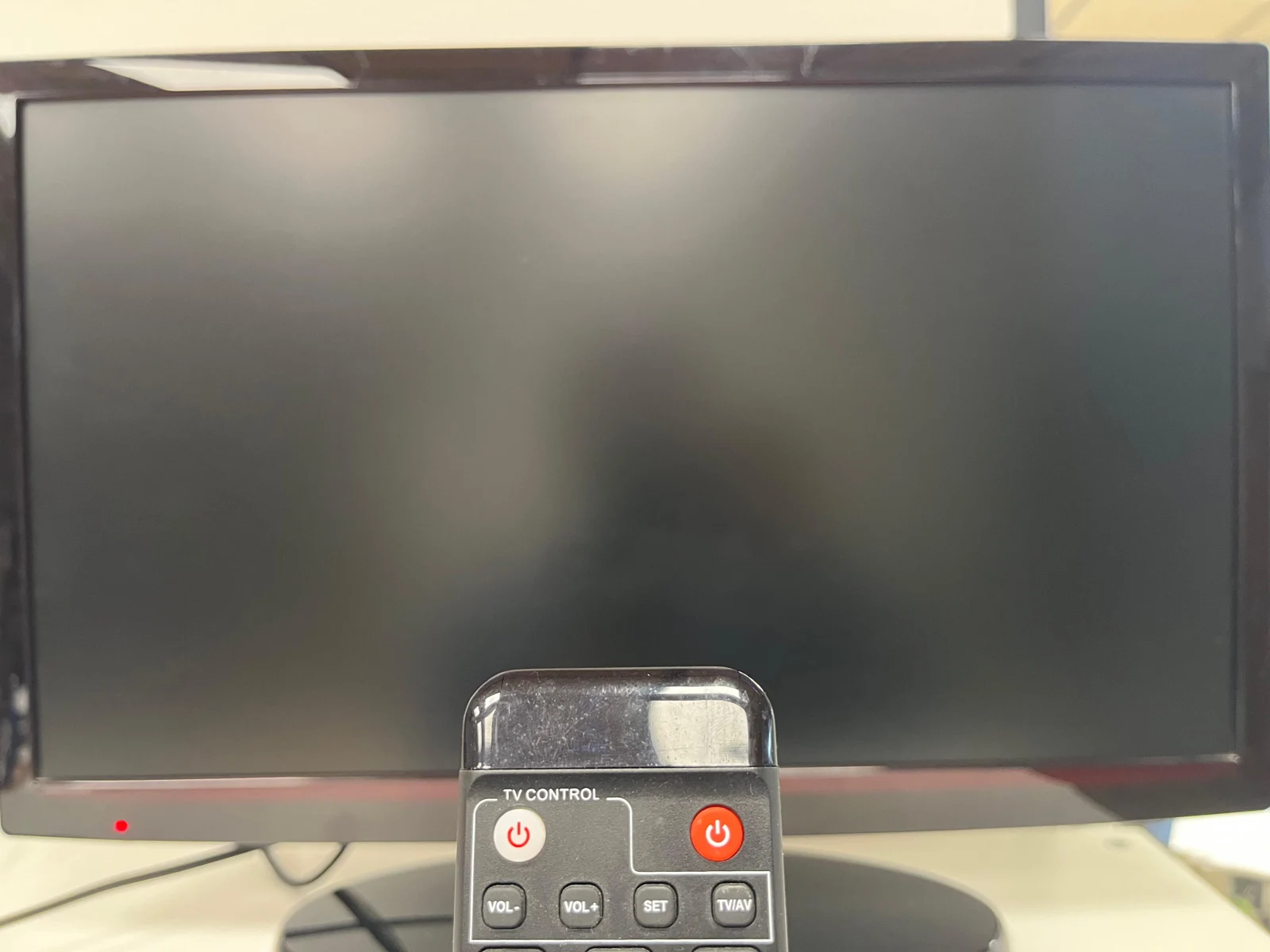
Point the remote at the TV and press its power button once.
Wait for the screen to turn on. If you see a TV channel or “No signal”, continue to the next step.
If the TV CONTROL section of your Qviart remote is already set up for your television, you can turn the TV on using the white button at the top left.
The television and the TV Box are switched on separately.
2 Select the HDMI input
Television remote
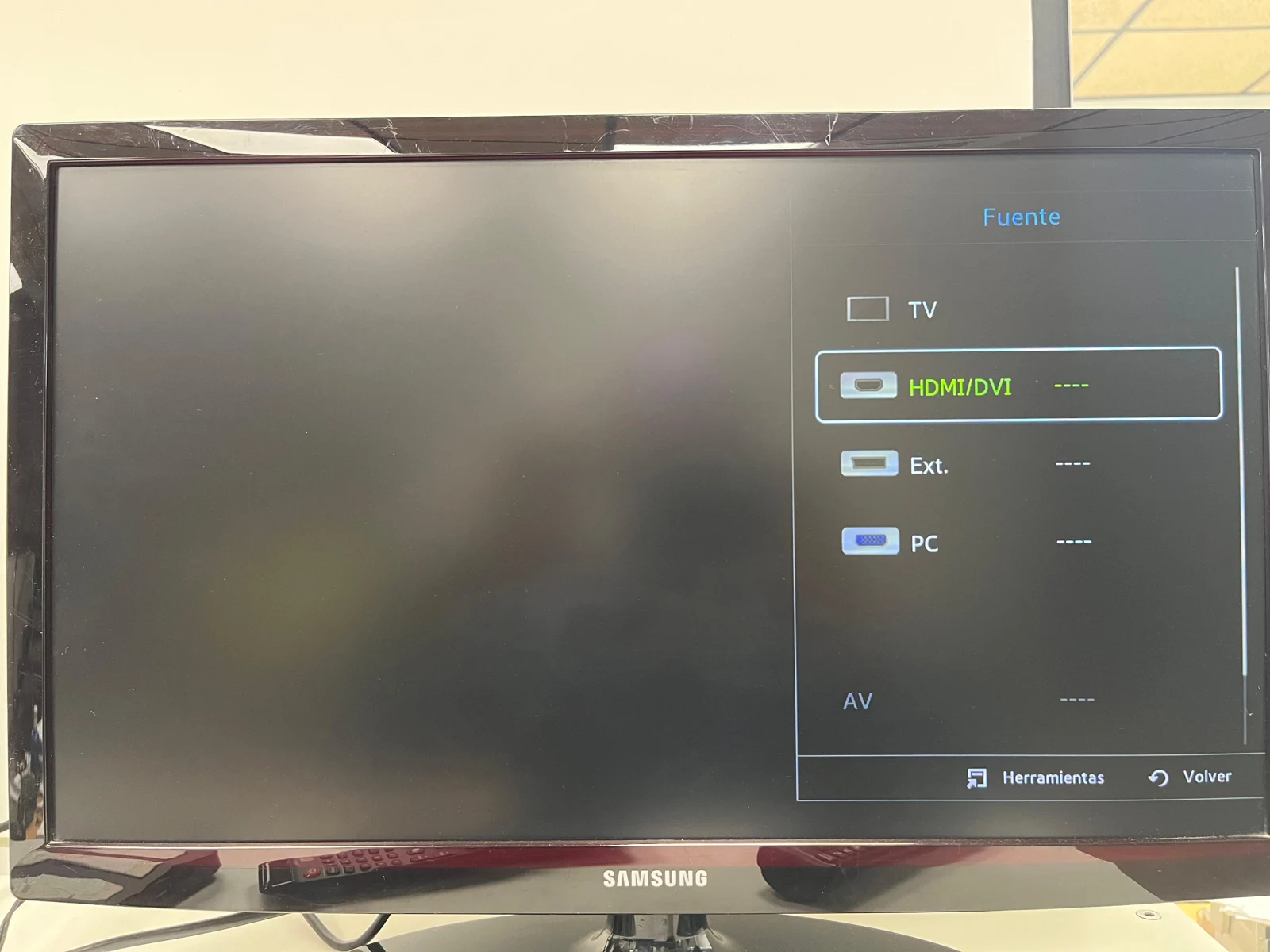
Press SOURCE or INPUT on your television’s remote. The button may also show an arrow pointing into a rectangle.
Use the arrows to select the HDMI input connected to your TV Box, then confirm with OK or Enter.
The photo shows HDMI/DVI. Your TV may show HDMI 1, HDMI 2, and so on. If there is more than one, select the input that matches the socket used by the TV Box’s HDMI cable. “Fuente” in the photo means “Source”.
If your Qviart remote has been set up to control your television, its TV/AV button may open this menu.
Look for HDMI. The “TV” option is for the television’s aerial channels.
3 Turn on the TV Box
Qviart remote
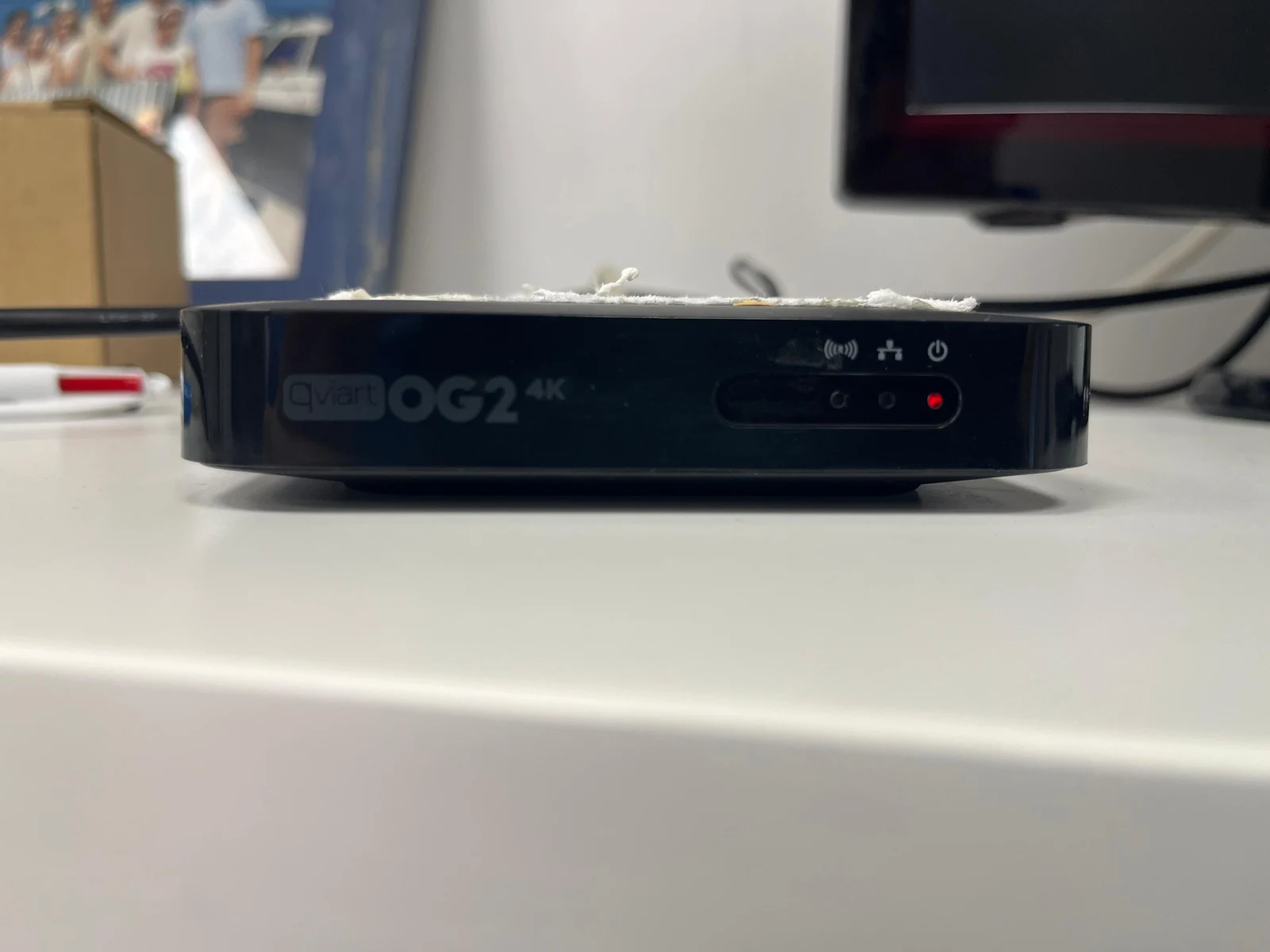
Point the remote at the front of the TV Box and press the red button at the top right once. If the power light is already green, go to step 4.
Red: standby
Turn it on using the red button on the remote.
Green: on
Check the light furthest to the right, below the power symbol.
Wait for the TV Box to finish starting up. Do not press the power button repeatedly: you could turn it off again.
4 Open Dragonet TV
Qviart remote
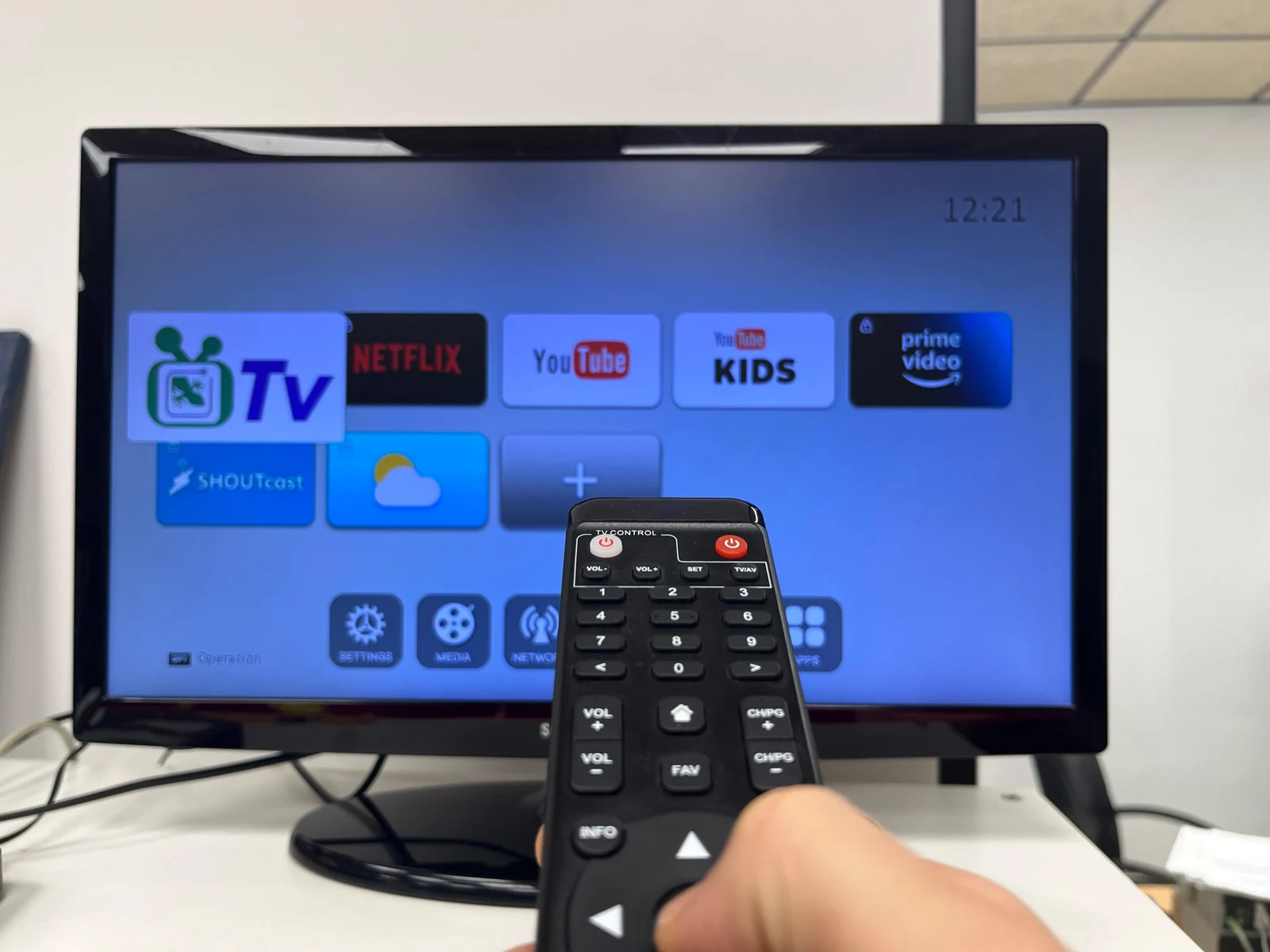
When the apps appear, use the arrow buttons around OK to select the Dragonet TV icon.
In the photo, it is the first icon in the top row. Look for a green television and the letters TV.
Press OK once and wait for the app to open.
If you are not on the apps screen, press the Home button (house symbol) on the Qviart remote.
Select the Dragonet TV icon and press OK.
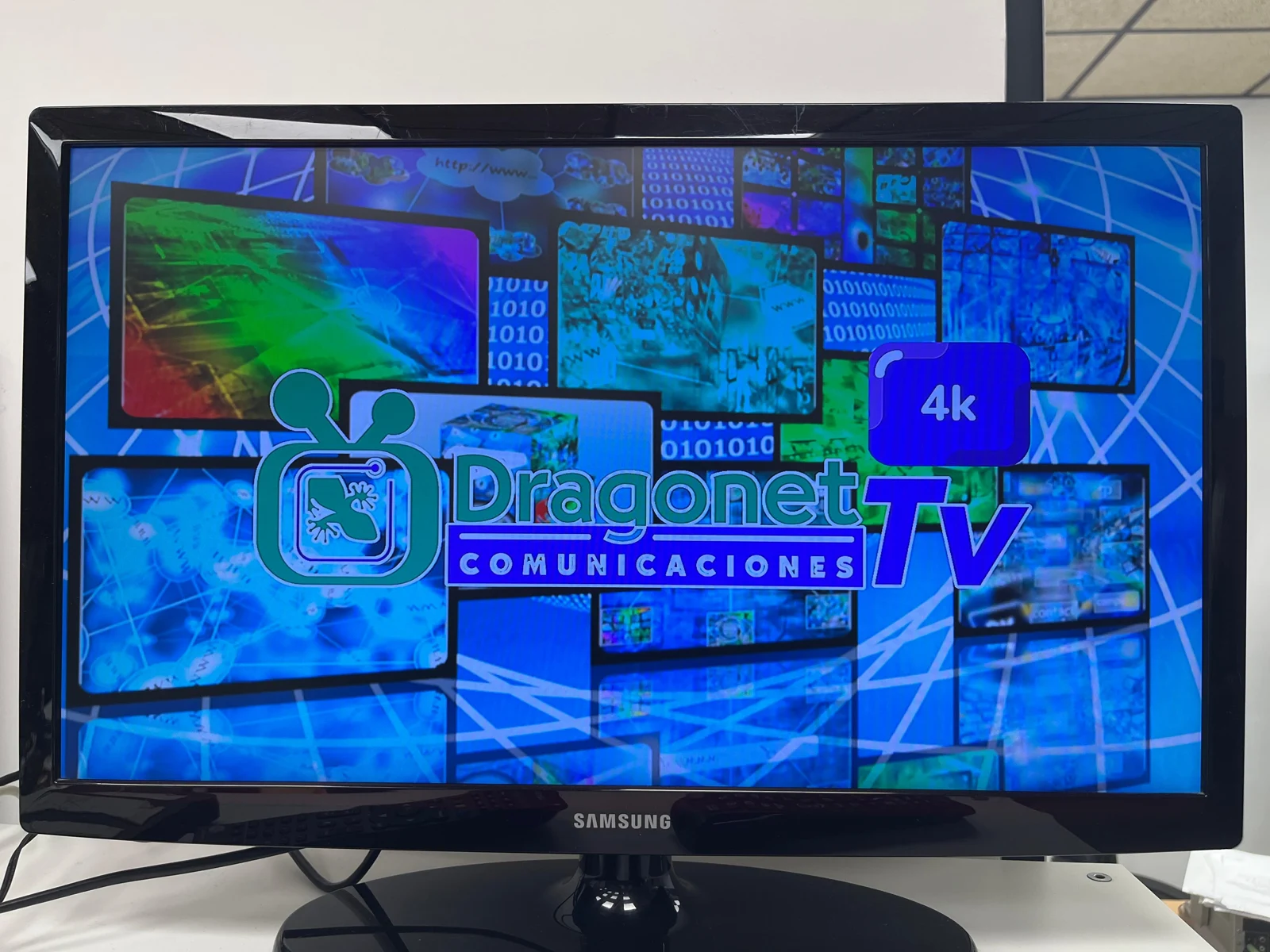
You may see this Dragonet TV image while the app opens. Wait for it to finish loading. If a channel is already playing, go straight to the next step.
The service’s start-up screen.
5 Change channels and adjust the volume
Qviart remote · Inside Dragonet TV
To change channels
Press CH/PG + for the next channel or CH/PG − for the previous one. These buttons are to the right of the Home button.
Press once and wait for the new channel to appear before pressing again.
To adjust the sound
Use VOL + and VOL −, to the left of the Home button.
If you cannot hear anything, also check the television’s own volume using its remote.
Watch this short video
Real demonstration · 11 seconds. Replay it as often as you need. The steps are also explained in the text above. This is the original recording; any on-screen text or audio has not been translated.
Press the red button on the Qviart remote to put the TV Box in standby. Turn off the television using its own remote too.
No picture? Check these things
The screen says “No signal”
Check that the TV Box’s power light is green. Then open Source / INPUT on your television and select the HDMI input connected to the TV Box. If it still does not work, check that the HDMI cable is firmly connected at both ends.
I can see my usual TV channels, but not Dragonet TV
Open Source / INPUT using your television’s remote and select the HDMI input for the TV Box. Then open the Dragonet TV app.
I can see the apps, but not the channels
Select the Dragonet TV icon using the arrow buttons on the Qviart remote and press OK. Wait for the app to finish opening.
The remote does not respond
Check that you are using the correct remote, point it at the front of the device and remove anything blocking it. Check or replace the batteries. Remember that the TV CONTROL section of the Qviart remote only works with your television if it has been set up for it.
There is a picture, but no sound
Turn up the TV Box’s volume using VOL +. Then turn up the television’s volume using its own remote and check that neither device is muted.
The picture freezes or the channels do not load
Check whether your home Internet connection is working. If the TV Box uses a network cable, make sure it is firmly connected. Try turning the TV Box off and on using the red button on the remote. If the problem continues, contact Dragonet and describe what you see on screen. Do not reset the device to factory settings.
If you need help from Dragonet
Have a photo of the TV screen ready and tell us the colour of the TV Box’s power light. This will help us guide you.
Need a hand?
Have a photo of the TV screen ready and tell us the colour of the TV Box’s power light.